Sage 300 Year-End Entries: How to Manage Them Successfully

We live, breathe, walk, speak, eat and sleep discrete manufacturing operations.
Let's talk shop
In the past, the common practice for handling Sage 300 year-end entries was to post any audit adjustments into period 12 of the previous year. Although this worked, these changes were then reflected specifically within that period, which clouded operational numbers for period 12 and made for unusual comparisons to previous months or years. To isolate these types of transactions from monthly reporting, you can post them to the Adjustment Period.
How to Manage Your Sage 300 Year-End Entries
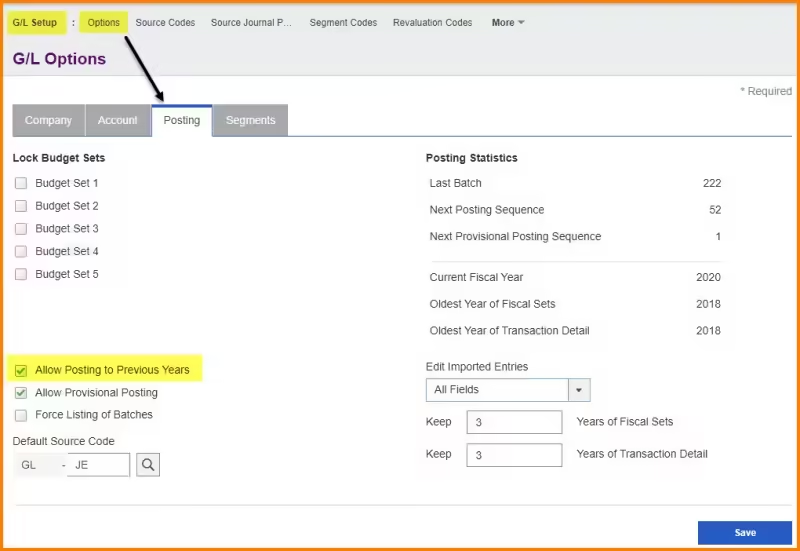
Before we start trying to post any adjustments, we must first ensure that the settings in Sage 300 will support where we wish to post. There are two settings that we need to check. The first is a global setting that will allow posting to ANY previous year. You will find this setting by browsing to General Ledger > G/L Setup > Options then clicking on the Posting tab. Select the checkbox for Allow Posting to Previous Years. Caution: Keep in mind that this is a global setting, so if you need to edit this value, you will need to make sure all other users are out of this company in order to save your changes.

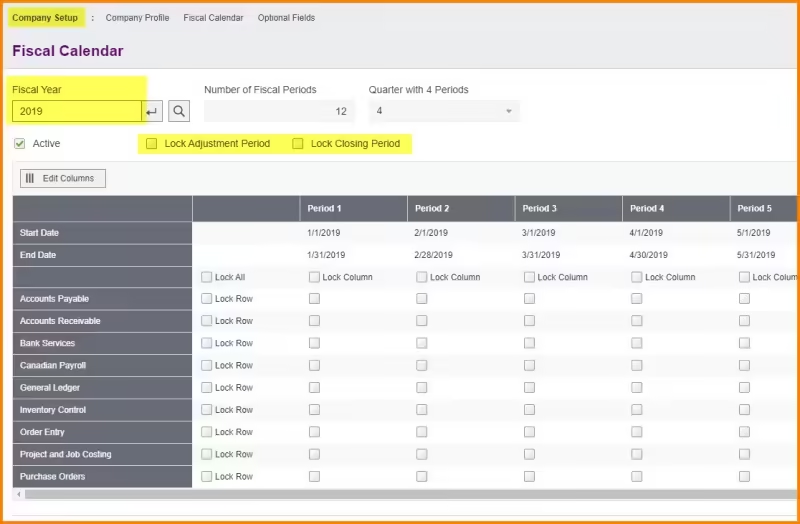
The other setting that you need to ensure is in place is in the Company Calendar, found under Common Services > Company Setup. For those of you using the Desktop version, you will find this directly under Common Services.
First, make sure that you select the correct Fiscal Year. Next, make sure that the boxes for Lock Adjustment Period AND Lock Closing Period are not checked. Any changes made here can be saved at any point provided you have the appropriate security.
Once these two steps are completed, we’re ready to enter and post the adjusting entries.
The process starts by creating a GL batch as normal and providing descriptions as you typically would. Make sure that the Document Date is the last day of the fiscal year for which you are entering adjustments. The Posting Date will default to the same date. However, the Year/Period will default to period 12.
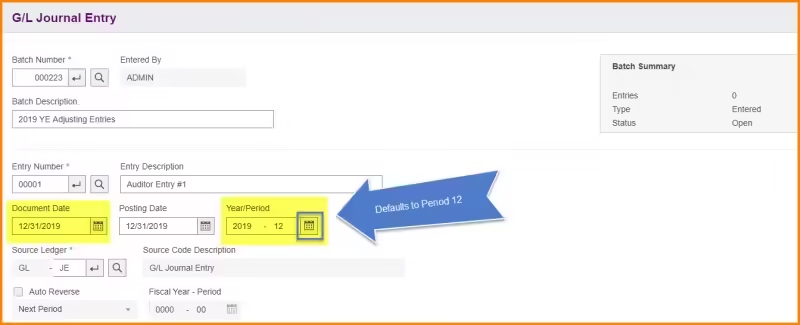
There is no way to have the Adjustment Period selected automatically, so you will need to do this next step manually. Click on the Calendar button beside the Year/Period and choose the Adjustment Period, represented by ADJ in the table.
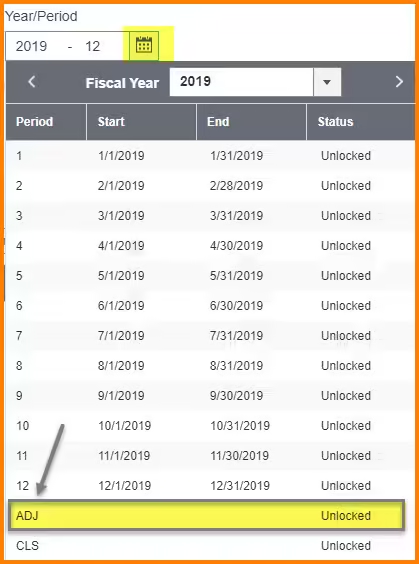
This will ensure that the entry gets posted to the Adjustment Period. Enter in the adjustments as you would any other GL Entry and post when you’re ready. Don’t worry about closing these entries to Retained Earnings, Sage 300 looks after that for you automatically which is why the Closing Period needs to be open.
Tips:
- If you want to generate year end financials that include adjustments, make sure that you use Period 14 (the Adjustment period equivalent)
- Consider entering each Audit Adjustment as its own entry but within the same GL batch.It keeps them all together but segregated to make it easier to trace back to the original source entries.
- After all adjustments are posted, print out a trial balance and compare to what you received from your accountant / auditor to make sure it matches.
- Once everything agrees, go back to the Fiscal Calendar and lock all periods including the Adjustment and Closing period for the year to ensure nothing is accidentally posted to it.
- You can consider removing the Allow Posting to Previous Years flag, however if the Fiscal Calendar is locked, nothing can be posted regardless.
Final Thoughts on Sage 300 Year-End Entries
Effectively managing Sage 300 year-end entries is crucial for maintaining accurate financial records and ensuring a smooth transition into the new fiscal year. By leveraging the Adjustment Period and following best practices for settings and posting, you can keep your operational numbers clear and audit trails transparent. Taking the time to properly handle Sage 300 year-end entries not only simplifies reporting and compliance but also sets your organization up for continued financial success in the year ahead.