UI Profiles in Sage 300cloud

We live, breathe, walk, speak, eat and sleep discrete manufacturing operations.
Let's talk shop- APS System: Introduction to Advanced Planning and Scheduling
- Vendor Management: How to Select the Right ERP Software for Managing Approved Manufacturers
- AI in Predictive Maintenance: How to Prevent Downtime on the Shop Floor
- AI-Driven Production Scheduling: Optimizing Efficiency on the Shop Floor
- The Ultimate Guide to Implementing a Paperless Shop Floor
- The Basics of Traceability in Manufacturing: Why It Matters
- Tariff Mitigation Strategies for Manufacturers: INDUSTRIOS ERP Approach
- ERP Gap Analysis: Finding What's Missing in Your Manufacturing Systems
- Types of Costs to Track in Make-to-Order Manufacturing
- Cost Analysis in MTO: 9 Key Evaluations for Successful Cost Management
- ERP Project Roadmap: Setting Your Project Up for Success with the First Three Stepping Stones
- AI-Enhanced Worker Safety: Reducing Accidents on the Shop Floor with Intelligent Systems
- ERP Implementation Process: Turning Plans Into Action with INDUSTRIOS
- ERP User Training: Building Knowledge and Confidence for INDUSTRIOS Success
- The Future of AI on the Shop Floor: What’s Next for Smart Manufacturing?
- ERP Go Live: Final Steps and Lessons from the INDUSTRIOS Project Roadmap
- Engineer to Order ERP: Managing Complex Project Manufacturing in Industrial Equipment
- CAD-ERP Integration: Why Eliminating Manual BOM Errors Matters
- 6 Excel Production Planning Problems: Why Spreadsheets Fail in Custom Manufacturing
- Mid Market ERP Implementation: Avoiding Over-Engineering for Industrial Manufacturers
- AI for Discrete Manufacturing: Intelligent Operations in Industrial Equipment Production
- Bidirectional Synchronization: How to Align Your Design and Production Teams
- CAD-ERP Integration Checklist: What to Look for in a CAD-ERP Tool
- INDUSTRIOS Perspective: Navigating the Canada–U.S. Trade Negotiations
- EBOM vs. MBOM: Why CAD-ERP Integration Is the Missing Link
- Customer Portal Benefits: Improving Business Operations and Customer Satisfaction
- Simultaneous Capacity and Material Planning Without the Spreadsheet Shuffle
- Seeing Your Factory Clearly: Your First Steps to Manufacturing Excellence and Scalability
- How to Choose Manufacturing ERP Software: A Practical Guide
- Cost Analysis in MTO: 9 Key Evaluations for Successful Cost Management
- On-Premise or Cloud ERP for Manufacturers: Which Makes Sense for You?
- How to Fix Supply Chain Problems with ERP Systems
- ERP Integration: The Secret to a Seamless Customer Portal
- Costs in Make-to-Order Manufacturing: 9 Essential Types to Track
- Real Results from Advanced Planning & Scheduling (APS) in Manufacturing
- Mobile-Friendly Customer Portal: Why Your Portal Needs to Work on Phones
- ERP for Configure-to-Order Manufacturing: How to Balance Custom Orders with Efficiency
- Customer Portal Benefits: Improving Business Operations and Customer Satisfaction
- Procurement Management: What Procurement Managers Actually Do With ERP Systems
- How to Efficiently Streamline RFQ to Order Process with a Customer Portal
- Manufacturing Dashboards, Analytics, and KPIs: A Unified Approach for Business Intelligence in ERP
- From Data to Strategy: How Manufacturing Analytics Drive Your Business Growth
- Optimize Your Operations with INDUSTRIOS Queries Hub for Centralized Insights
- The Future of Supply Chain Management: AI Tools for Multi-Supplier Coordination
- How to Create Winning Competitive Quotes with INDUSTRIOS
- 9 Advanced Planning and Scheduling Benefits for Your Manufacturing Facility
- APS Scheduling: Effective Manufacturing with INDUSTRIOS APS
- How to use RMA Transactions to Optimize Your Team Performance
- RMA Process: 7 Tips to Tailor Your Manufacturing Processes Effortlessly
- IndustriOS APS: Harness the Power of Streamlined Manufacturing Operations
- Cycle Counting: A 3-Part Guide to Mastering Your Physical Inventory Counts
- Full Inventory Count: A 3-Part Guide on How You can Excel Your Inventory Management
- Physical Inventory Counts: A 3-Part Guide on How You Can Excel Your Inventory Management
- How INDUSTRIOS EDI Transforms Business Processes with Automated Data Sharing
- Optimization of the Planning Cycle: How INDUSTRIOS EDI Streamlines Order Management, Shipment Tracking, and Payment Processing
- Mobile ERP Enters a New Era of Intelligent Multi-Device Experiences
- Why Now is the Time for You to Embrace a Hybrid Cloud ERP
- OK, maybe some ERP consultants are not chickens
- From Chicken to Bacon: Why ERP Consultants' Commitment Matters in Implementations
- Save Time with Recurring Entries
- Super Charge Your Item Creation - Part 2
- What's New in Q2 2022
- Going Retro with INDUSTRIOS Screens
- Super Charge Your Item Creation - Part 1: Item Types
- There's No Getting Around Taxes - But Avalara Can Help
- The Case of the Missing Range
- Welcome to the INDUSTRIOS Idea Board!
- New Features in Q1 2022
- Sage 300 Global Search: How to Quickly Find Transactions and Records
- Control Access to Vendor Accounts with Vendor Management Security
- Employee Mass Update Utility
- The Finished Goods Library is Always Open!
- Recap of Finished Goods 2021
- Export the Inventory Activity Query to Support Targeted Analysis
- Let INDUSTRIOS Take You Mobile!
- Let Formulas Lend a Helping Hand
- How to Get Multiple Uses from Sage 300 Screens
- Material Planning 101 - Expedite Days and the MRP Calculation
- Attach Standard Terms and Conditions to Outbound Emails
- What's New in Sage 2022
- The INDUSTRIOS Purchase Price Analysis Feature Helps Keep an Eye on Costs
- Do Your Robotics and Industrial Automation Projects Run Like Well Oiled Machines?
- Supply Integration - a Competitive Edge for Robotics and Industrial Automation Systems Integrators
- Workforce Management, Minus the Headaches
- Integrated Fulfillment and Shipping make Installation of Robotics Systems Easy
- Capture all Costs Associated with your Robotics and Systems Integrations Projects
- Single Source of Truth - When you have confidence in the data, meetings are productive
- Robotics and Industrial Automation Projects Range in Complexity. Can Your System Adapt?
- Robotics Projects 101 - Setting the Framework for Success
- Are ERP Systems Selling Themselves Short?
- Are You Prepared for the Voyage?
- Is Everyone Rowing in the Same Direction?
- Is Your Business Sending the Right Signals?
- How Deep is Your Data Pool?
- Enlist the Sales Order Log to Track Changes to Sales Orders
- Manage Prospects and Customers Separately Using Account Types
- Limit Sale of Specific Items to an Approved List of Customers
- IOS 101 - The Benefits and Uses of the Non Stocking Inventory Item
- Simplify Item and BOM Maintenance by Using a Vendor Item Cross Reference
- Use Customer Notes to Keep Account News Front and Center
- Rate Your Vendors on Timing and Quality with the Vendor Inspection Report
- Use Sales Order Workflow to Quick Ship Items
- Unfilled Material Requests - The Waiting for Inventory Workbench
- Ledger Lines - Period End Maintenance in Sage 300
- Facton Acquired by Fog Software Group
- Don't Get Left Behind - Support for INDUSTRIOS Magic Versions is Ending on Dec 31, 2021
- Get Months Rolling with the Financial Trend Analysis Report in Sage 300c - Part 3
- How to Resolve the Sage 300 Document Already Exists Error
- Sage Information at Your Fingertips with the Inquiry Tool in Sage 300c Web Screens
- Sage 300: Setting Up a New Bank
- Sage 300 Report Spotlight – The Financial Trend Analysis Report
- 5 INDUSTRIOS ERP Tasks to Tackle in a Slowdown
- Sage 300 Year-End Entries: How to Manage Them Successfully
- Shoplogix Acquires IndustriOS Software, Inc.
- Ready, Set, Go! Wait, do we have everything?
- Mirror, Mirror on the Wall, Show Me Where I Can Find It All.
- A project accountant’s dream
- The Orange Factor – No project too big, no project too small for this ERP
- Work force management, minus the headaches
- Make supply integration your secret weapon
- Project Manufacturing 101: A study in adaptability
- Gain an Edge in Your Robotics Projects
- UI Profiles in Sage 300cloud
- Finished Goods Topic Summary - Volume 1
- Contract Manufacturing: Can your ERP do this?
- See us at EDPA ACCESS 2018
- Mirror, Mirror on the Wall, Show Me Where I Can Find It All
- Accurate Costing and Cash Flow Management - A Project Accountants’ Dream
- Lights, camera, action…. Wait! Do we have everything?
- Time Tracking, Minus the Headache
- The Secret Weapon to Success: Supply Integration
- Experiential Design: Project Management 101
- Introducing the Orange Factor to the World of Experiential Design
- Introducing PlantChat
- Raise Activity IQ with Tokens
- INDUSTRIOS PlantHours
- The Finished Goods January 2018
- RACER Machinery International Ltd. implements INDUSTRIOS manufacturing ERP software to support growth
- Middleton Group Inc. Selects INDUSTRIOS for ERP and Data Tracking Functionality
- Sage 300 2018.0 Release Available from August 1, 2017
- Sage 300 and 300C Short-Term Roadmap
- The 8th (and not least) Benefit of Time and Attendance
- The #1 reason your ERP software isn’t working
- Time and Attendance benefits at SmithCo
- OK, maybe some ERP consultants are not chickens
- Webinar: The Invisible Factory – Next-generation ERP focuses on the big picture
- ERP Implementation: Why ERP Consultants' Commitment Matters
- Who’s cashing in on ERP cloud consulting?
- INDUSTRIOS Cloud Deployment at TMI
- Success Story: SmithCo Mfg. Inc. improves overall operations
- Electrovaya Selects INDUSTRIOS
- INDUSTRIOS Launches New Website
- Shelfware or Not?
- Shelfware or Not? The discussion continues…
- Be in the Know: Key Criteria in ERP Software Selection
- A cyclist's review of manufacturing software, INDUSTRIOS – The impact on our world
- Sage 300 ERP, formerly Sage ERP Accpac, and INDUSTRIOS solve manufacturing and inventory issues for a Toronto, Ontario fence manufacturing business
- Auto-Valve streamlines their workflow with INDUSTRIOS manufacturing software
- Leone Fence opens the gateway to growth with INDUSTRIOS, powerful manufacturing software, and Sage 300 ERP formerly Sage ERP Accpac, robust financial software
- Universal Motion Components streamlines processes and Inventory Control with INDUSTRIOS ERP Manufacturing Suite
- Blue Sky Computing - Dissipating the Cloud
- Top 5 Reasons to Deploy a Hybrid ERP (Cloud + On-Premise)
- Even ERP Suites Write Integrations
- Hybrid Cloud Deployment in Manufacturing
- Innovation: The New Standard of Manufacturing in Ontario
- Destination Ontario: Silicon Valley of the North
- Why integrate QuickBooks to a mid-market manufacturing ERP system?
- Welcome to INDUSTRIOS and the world of discrete manufacturing, Nuts and Bolts of Manufacturing
- Manufacturing ERP Implementation Success: GCW Kitchens & Cabinetry Transforms Operations
- On-time On-Budget ERP Implementation
- APS System: Introduction to Advanced Planning and Scheduling
- Vendor Management: How to Select the Right ERP Software for Managing Approved Manufacturers
- AI in Predictive Maintenance: How to Prevent Downtime on the Shop Floor
- AI-Driven Production Scheduling: Optimizing Efficiency on the Shop Floor
- The Ultimate Guide to Implementing a Paperless Shop Floor
- The Basics of Traceability in Manufacturing: Why It Matters
- Tariff Mitigation Strategies for Manufacturers: INDUSTRIOS ERP Approach
- ERP Gap Analysis: Finding What's Missing in Your Manufacturing Systems
- Types of Costs to Track in Make-to-Order Manufacturing
- Cost Analysis in MTO: 9 Key Evaluations for Successful Cost Management
- ERP Project Roadmap: Setting Your Project Up for Success with the First Three Stepping Stones
- AI-Enhanced Worker Safety: Reducing Accidents on the Shop Floor with Intelligent Systems
- ERP Implementation Process: Turning Plans Into Action with INDUSTRIOS
- ERP User Training: Building Knowledge and Confidence for INDUSTRIOS Success
- The Future of AI on the Shop Floor: What’s Next for Smart Manufacturing?
- ERP Go Live: Final Steps and Lessons from the INDUSTRIOS Project Roadmap
- Engineer to Order ERP: Managing Complex Project Manufacturing in Industrial Equipment
- CAD-ERP Integration: Why Eliminating Manual BOM Errors Matters
- 6 Excel Production Planning Problems: Why Spreadsheets Fail in Custom Manufacturing
- Mid Market ERP Implementation: Avoiding Over-Engineering for Industrial Manufacturers
- AI for Discrete Manufacturing: Intelligent Operations in Industrial Equipment Production
- Bidirectional Synchronization: How to Align Your Design and Production Teams
- CAD-ERP Integration Checklist: What to Look for in a CAD-ERP Tool
- INDUSTRIOS Perspective: Navigating the Canada–U.S. Trade Negotiations
- EBOM vs. MBOM: Why CAD-ERP Integration Is the Missing Link
- Customer Portal Benefits: Improving Business Operations and Customer Satisfaction
- Simultaneous Capacity and Material Planning Without the Spreadsheet Shuffle
- Seeing Your Factory Clearly: Your First Steps to Manufacturing Excellence and Scalability
- How to Choose Manufacturing ERP Software: A Practical Guide
- Cost Analysis in MTO: 9 Key Evaluations for Successful Cost Management
- On-Premise or Cloud ERP for Manufacturers: Which Makes Sense for You?
- How to Fix Supply Chain Problems with ERP Systems
- ERP Integration: The Secret to a Seamless Customer Portal
- Costs in Make-to-Order Manufacturing: 9 Essential Types to Track
- Real Results from Advanced Planning & Scheduling (APS) in Manufacturing
- Mobile-Friendly Customer Portal: Why Your Portal Needs to Work on Phones
- ERP for Configure-to-Order Manufacturing: How to Balance Custom Orders with Efficiency
- Customer Portal Benefits: Improving Business Operations and Customer Satisfaction
- Procurement Management: What Procurement Managers Actually Do With ERP Systems
- How to Efficiently Streamline RFQ to Order Process with a Customer Portal
- Manufacturing Dashboards, Analytics, and KPIs: A Unified Approach for Business Intelligence in ERP
- From Data to Strategy: How Manufacturing Analytics Drive Your Business Growth
- Optimize Your Operations with INDUSTRIOS Queries Hub for Centralized Insights
- The Future of Supply Chain Management: AI Tools for Multi-Supplier Coordination
- How to Create Winning Competitive Quotes with INDUSTRIOS
- 9 Advanced Planning and Scheduling Benefits for Your Manufacturing Facility
- APS Scheduling: Effective Manufacturing with INDUSTRIOS APS
- How to use RMA Transactions to Optimize Your Team Performance
- RMA Process: 7 Tips to Tailor Your Manufacturing Processes Effortlessly
- IndustriOS APS: Harness the Power of Streamlined Manufacturing Operations
- Cycle Counting: A 3-Part Guide to Mastering Your Physical Inventory Counts
- Full Inventory Count: A 3-Part Guide on How You can Excel Your Inventory Management
- Physical Inventory Counts: A 3-Part Guide on How You Can Excel Your Inventory Management
- How INDUSTRIOS EDI Transforms Business Processes with Automated Data Sharing
- Optimization of the Planning Cycle: How INDUSTRIOS EDI Streamlines Order Management, Shipment Tracking, and Payment Processing
- Mobile ERP Enters a New Era of Intelligent Multi-Device Experiences
- Why Now is the Time for You to Embrace a Hybrid Cloud ERP
- OK, maybe some ERP consultants are not chickens
- From Chicken to Bacon: Why ERP Consultants' Commitment Matters in Implementations
- Save Time with Recurring Entries
- Super Charge Your Item Creation - Part 2
- What's New in Q2 2022
- Going Retro with INDUSTRIOS Screens
- Super Charge Your Item Creation - Part 1: Item Types
- There's No Getting Around Taxes - But Avalara Can Help
- The Case of the Missing Range
- Welcome to the INDUSTRIOS Idea Board!
- New Features in Q1 2022
- Sage 300 Global Search: How to Quickly Find Transactions and Records
- Control Access to Vendor Accounts with Vendor Management Security
- Employee Mass Update Utility
- The Finished Goods Library is Always Open!
- Recap of Finished Goods 2021
- Export the Inventory Activity Query to Support Targeted Analysis
- Let INDUSTRIOS Take You Mobile!
- Let Formulas Lend a Helping Hand
- How to Get Multiple Uses from Sage 300 Screens
- Material Planning 101 - Expedite Days and the MRP Calculation
- Attach Standard Terms and Conditions to Outbound Emails
- What's New in Sage 2022
- The INDUSTRIOS Purchase Price Analysis Feature Helps Keep an Eye on Costs
- Do Your Robotics and Industrial Automation Projects Run Like Well Oiled Machines?
- Supply Integration - a Competitive Edge for Robotics and Industrial Automation Systems Integrators
- Workforce Management, Minus the Headaches
- Integrated Fulfillment and Shipping make Installation of Robotics Systems Easy
- Capture all Costs Associated with your Robotics and Systems Integrations Projects
- Single Source of Truth - When you have confidence in the data, meetings are productive
- Robotics and Industrial Automation Projects Range in Complexity. Can Your System Adapt?
- Robotics Projects 101 - Setting the Framework for Success
- Are ERP Systems Selling Themselves Short?
- Are You Prepared for the Voyage?
- Is Everyone Rowing in the Same Direction?
- Is Your Business Sending the Right Signals?
- How Deep is Your Data Pool?
- Enlist the Sales Order Log to Track Changes to Sales Orders
- Manage Prospects and Customers Separately Using Account Types
- Limit Sale of Specific Items to an Approved List of Customers
- IOS 101 - The Benefits and Uses of the Non Stocking Inventory Item
- Simplify Item and BOM Maintenance by Using a Vendor Item Cross Reference
- Use Customer Notes to Keep Account News Front and Center
- Rate Your Vendors on Timing and Quality with the Vendor Inspection Report
- Use Sales Order Workflow to Quick Ship Items
- Unfilled Material Requests - The Waiting for Inventory Workbench
- Ledger Lines - Period End Maintenance in Sage 300
- Facton Acquired by Fog Software Group
- Don't Get Left Behind - Support for INDUSTRIOS Magic Versions is Ending on Dec 31, 2021
- Get Months Rolling with the Financial Trend Analysis Report in Sage 300c - Part 3
- How to Resolve the Sage 300 Document Already Exists Error
- Sage Information at Your Fingertips with the Inquiry Tool in Sage 300c Web Screens
- Sage 300: Setting Up a New Bank
- Sage 300 Report Spotlight – The Financial Trend Analysis Report
- 5 INDUSTRIOS ERP Tasks to Tackle in a Slowdown
- Sage 300 Year-End Entries: How to Manage Them Successfully
- Shoplogix Acquires IndustriOS Software, Inc.
- Ready, Set, Go! Wait, do we have everything?
- Mirror, Mirror on the Wall, Show Me Where I Can Find It All.
- A project accountant’s dream
- The Orange Factor – No project too big, no project too small for this ERP
- Work force management, minus the headaches
- Make supply integration your secret weapon
- Project Manufacturing 101: A study in adaptability
- Gain an Edge in Your Robotics Projects
- UI Profiles in Sage 300cloud
- Finished Goods Topic Summary - Volume 1
- Contract Manufacturing: Can your ERP do this?
- See us at EDPA ACCESS 2018
- Mirror, Mirror on the Wall, Show Me Where I Can Find It All
- Accurate Costing and Cash Flow Management - A Project Accountants’ Dream
- Lights, camera, action…. Wait! Do we have everything?
- Time Tracking, Minus the Headache
- The Secret Weapon to Success: Supply Integration
- Experiential Design: Project Management 101
- Introducing the Orange Factor to the World of Experiential Design
- Introducing PlantChat
- Raise Activity IQ with Tokens
- INDUSTRIOS PlantHours
- The Finished Goods January 2018
- RACER Machinery International Ltd. implements INDUSTRIOS manufacturing ERP software to support growth
- Middleton Group Inc. Selects INDUSTRIOS for ERP and Data Tracking Functionality
- Sage 300 2018.0 Release Available from August 1, 2017
- Sage 300 and 300C Short-Term Roadmap
- The 8th (and not least) Benefit of Time and Attendance
- The #1 reason your ERP software isn’t working
- Time and Attendance benefits at SmithCo
- OK, maybe some ERP consultants are not chickens
- Webinar: The Invisible Factory – Next-generation ERP focuses on the big picture
- ERP Implementation: Why ERP Consultants' Commitment Matters
- Who’s cashing in on ERP cloud consulting?
- INDUSTRIOS Cloud Deployment at TMI
- Success Story: SmithCo Mfg. Inc. improves overall operations
- Electrovaya Selects INDUSTRIOS
- INDUSTRIOS Launches New Website
- Shelfware or Not?
- Shelfware or Not? The discussion continues…
- Be in the Know: Key Criteria in ERP Software Selection
- A cyclist's review of manufacturing software, INDUSTRIOS – The impact on our world
- Sage 300 ERP, formerly Sage ERP Accpac, and INDUSTRIOS solve manufacturing and inventory issues for a Toronto, Ontario fence manufacturing business
- Auto-Valve streamlines their workflow with INDUSTRIOS manufacturing software
- Leone Fence opens the gateway to growth with INDUSTRIOS, powerful manufacturing software, and Sage 300 ERP formerly Sage ERP Accpac, robust financial software
- Universal Motion Components streamlines processes and Inventory Control with INDUSTRIOS ERP Manufacturing Suite
- Blue Sky Computing - Dissipating the Cloud
- Top 5 Reasons to Deploy a Hybrid ERP (Cloud + On-Premise)
- Even ERP Suites Write Integrations
- Hybrid Cloud Deployment in Manufacturing
- Innovation: The New Standard of Manufacturing in Ontario
- Destination Ontario: Silicon Valley of the North
- Why integrate QuickBooks to a mid-market manufacturing ERP system?
- Welcome to INDUSTRIOS and the world of discrete manufacturing, Nuts and Bolts of Manufacturing
- Manufacturing ERP Implementation Success: GCW Kitchens & Cabinetry Transforms Operations
- On-time On-Budget ERP Implementation

With UI Profiles functionality, you can control which fields on a screen a User is able to view. As with normal security settings, you can create User Groups and then assign setting details to each group. You can then define which users belong to that group.
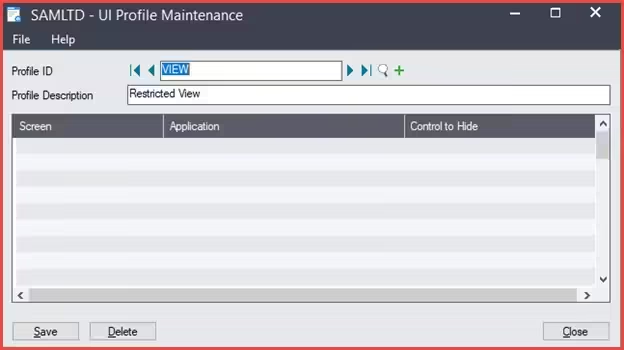
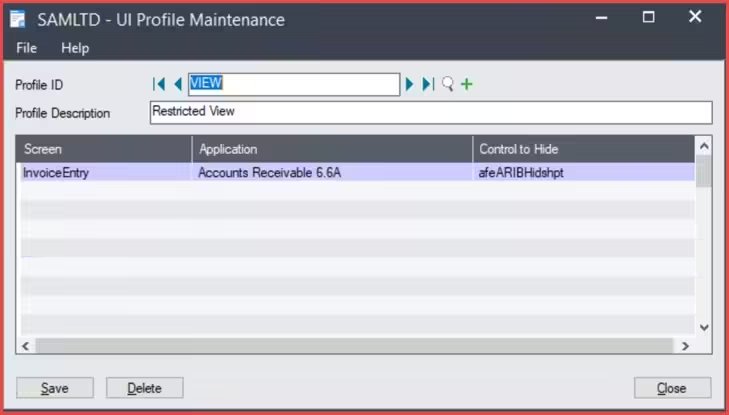
It starts with creating a Profile ID, found under Administrative Services > UI Profile Maintenance.

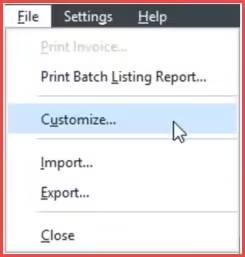
Once you have a Profile created, the next step is to launch the screen on which you would like to hide fields. From the Menu line select File and then select Customize.

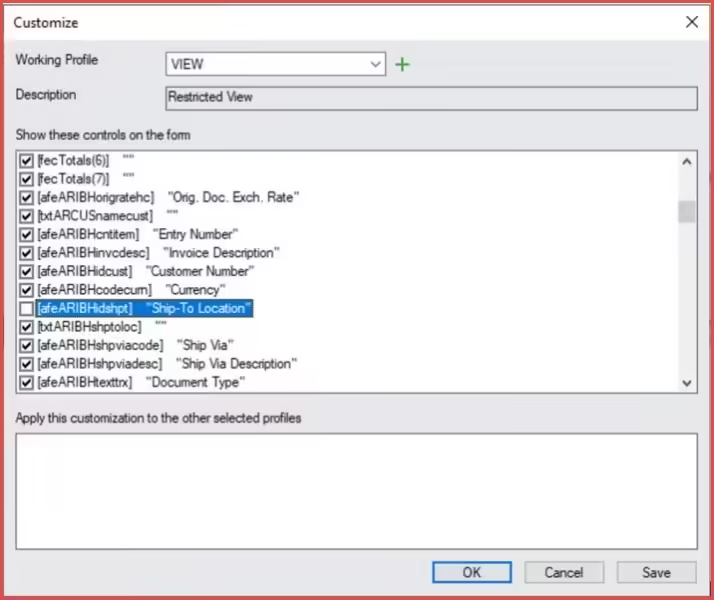
From the screen that opens, choose the Profile ID that you wish to restrict. Scroll through the list of fields and uncheck the box(es) for those fields you no longer want displayed for this User Group. When you’ve finished restricting fields, Save the Profile ID.

After saving, the UI Profile Maintenance screen will look like this
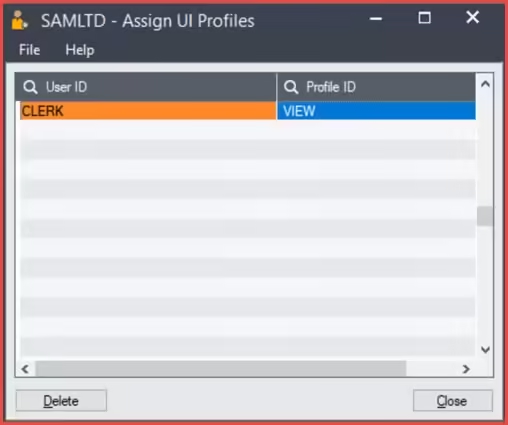
The last step is to assign Profile IDs to the Users. A User can have more than one assigned Profile ID. Go to Administrative Services > Assign UI Profile.

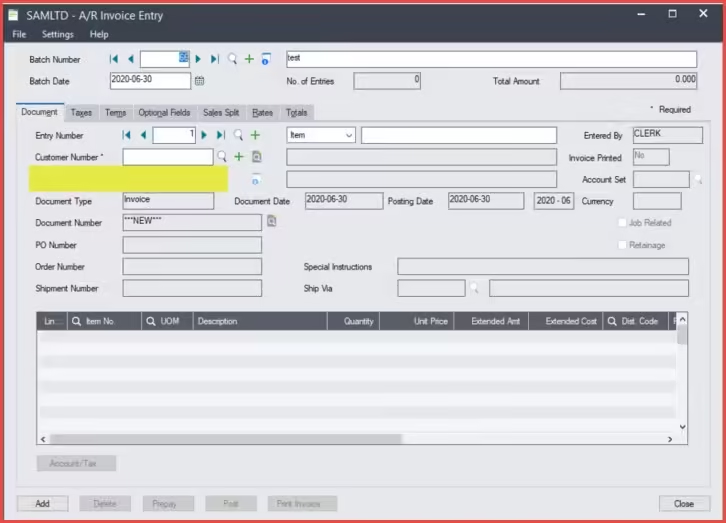
The next time the User logs in, the selected field(s) will be hidden (highlighted area).